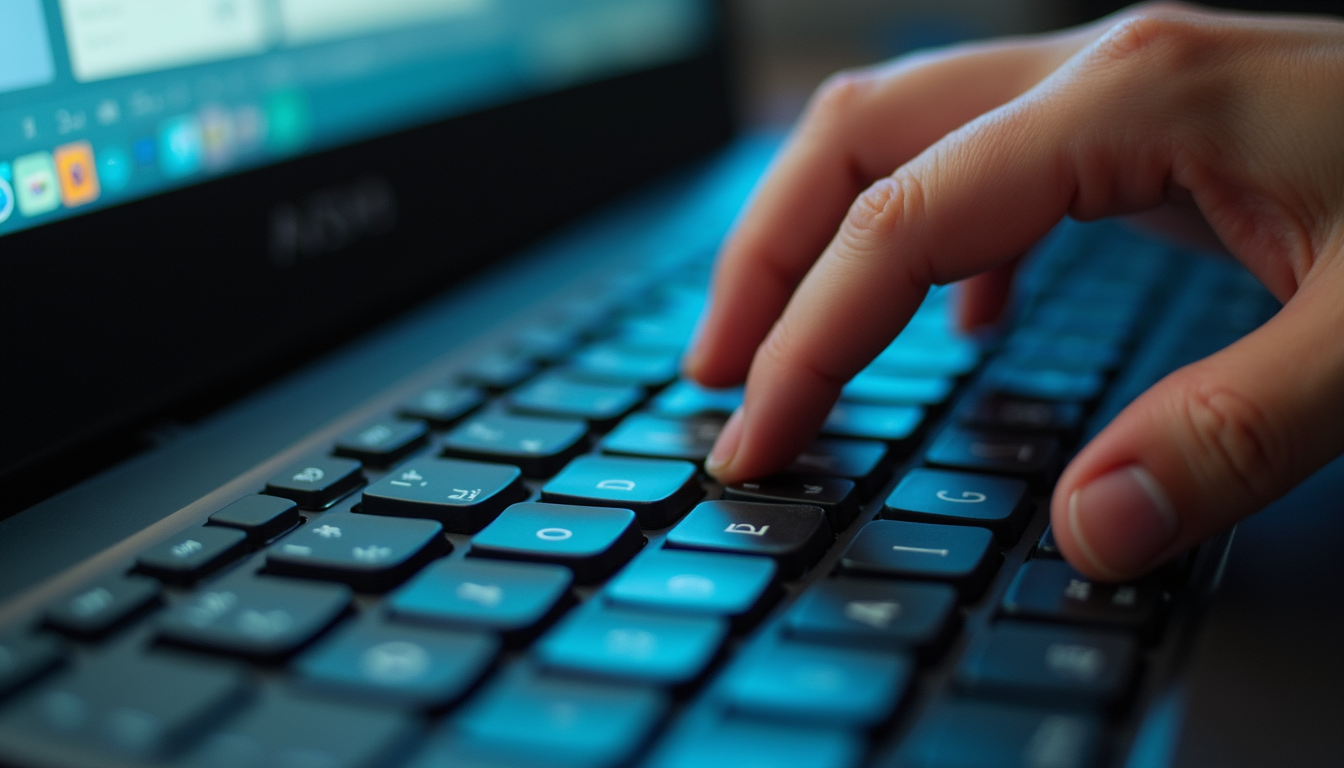
Computer Maintenance: Essential Practices
Regular computer maintenance is crucial for longevity and performance. Just like a car needs an oil change or tune-up, your computer requires consistent upkeep. Here are some fundamental practices to maintain your system effectively:
- Keep Your Software Updated : Regularly updating your operating system and applications helps fix bugs and improves performance. Software updates often include essential security patches that keep your system safe from threats.
- Run Antivirus Scans : helps that your antivirus software is up-to-date. Schedule regular scans to detect malware, viruses, or other harmful software that can slow down your computer.
- Manage Your Storage : Keep an eye on your hard drive space. When it gets full, your computer can slow down significantly. Remove unnecessary files and uninstall programs you no longer use.
- This process reorganizes fragmented data, making it easier for your computer to read files. For SSDs, this isn't necessary.
- Control Startup Programs : Many programs start automatically when your computer boots up. Limit these to the essentials to improve startup times and overall performance.
Regular Maintenance Routines
Establishing a routine can help you stay on top of your computer's health. Regular checks and activities can reduce the risk of problems before they arise:
Weekly Maintenance Tasks
- Clear Browser Cache : Free up storage space and enhance browsing speed by clearing your browser’s cache.
- Backup Your Data : Regularly back up important files to an external hard drive or cloud storage to prevent data loss.
Monthly Maintenance Tasks
- Check for System Updates : helps all system and security updates are applied.
- Use Disk Cleanup Tools : Run tools that come with your operating system to remove temporary files and optimize system performance.
Quarterly Maintenance Tasks
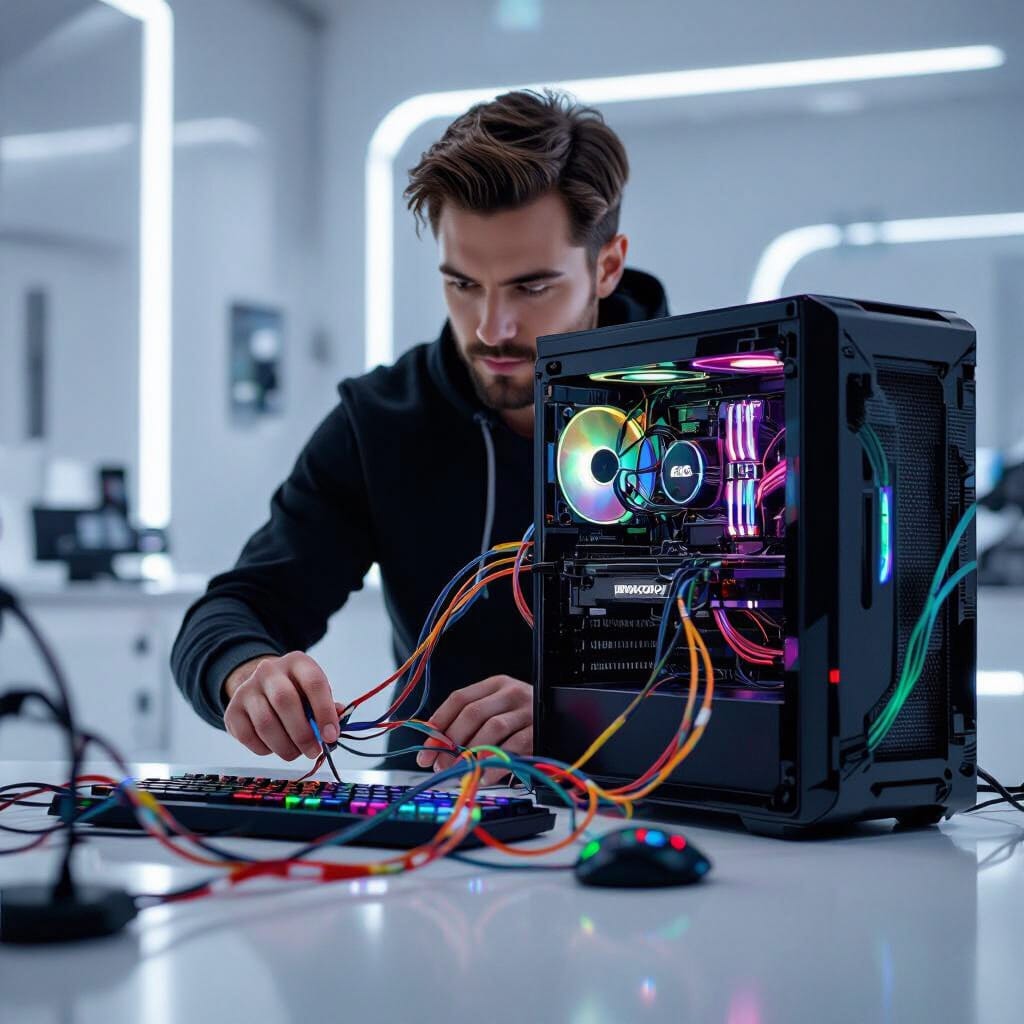
- Physical Cleaning : Dust and dirt can accumulate in your computer, leading to overheating. Use canned air to clean keyboards and other components.
Yearly Maintenance Tasks
- Professional Check-Up : Consider hiring professional computer services to conduct a thorough inspection and maintenance of your system. This can help identify any potential issues before they disrupt your workflow.
What Are the 4 Types of Computer System Servicing?
Understanding the types of computer system servicing can help you decide what kind of maintenance your system requires. The four main types are:
- Preventive Maintenance : As the name suggests, this type focuses on preventing disasters before they occur. It includes regular software updates, virus scans, and hardware checks.
- Corrective Maintenance : This type is performed when problems arise. It involves troubleshooting and repairing issues, such as fixing software bugs or replacing faulty hardware.
- Adaptive Maintenance : This helps that your computer systems remain compatible with evolving technology. It may include updates or patches to existing software to keep it relevant.
- Perfective Maintenance : This focuses on improving performance or adding features to your system. It may involve upgrading software to a new version or enhancing hardware components.
Troubleshooting Common Computer Issues
Despite the best maintenance practices, you may encounter issues with your computer. Here are some common problems and quick fixes:
- Slow Performance : If your computer is running slowly, try restarting it. This can clear temporary files and free up resources. If the problem persists, consider checking for malware or updating your software.
- Frequent Crashes : System crashes can indicate hardware issues or corrupted software. Running a virus scan and checking for updates can help. If crashes continue, seeking professional help may be necessary.
- Overheating : If your computer feels hot to the touch, it may have a cooling issue. Make sure vents are not blocked and dust is cleared. If problems persist, you may need to consult with computer services for a diagnosis.
Upgrading Your Hardware for Better Performance
If your computer struggles to keep up with the latest software, it may be time for an upgrade. Here are some components to consider:
- RAM (Random Access Memory) : Upgrading your RAM can significantly improve performance, especially for multitasking or running heavy applications.
- Storage : Switching from an HDD to an SSD can result in faster boot times and improved overall performance. SSDs are generally more reliable and efficient.
- Graphic Card : For gamers or graphic design professionals, upgrading the graphic card can enhance performance in demanding applications.
Investing in these hardware upgrades can breathe new life into an older computer, ensuring it runs smoothly for years to come.
Safe maintenance boundaries
Back up before major changes. Power off and unplug equipment before exterior cleaning; follow the manufacturer’s instructions and do not spray liquid into openings. Avoid opening power supplies or devices with swollen batteries. Use the operating system’s supported storage optimization rather than manual SSD defragmentation or registry-cleaning utilities. Maintenance frequency depends on dust, workload and symptoms, not a universal schedule.