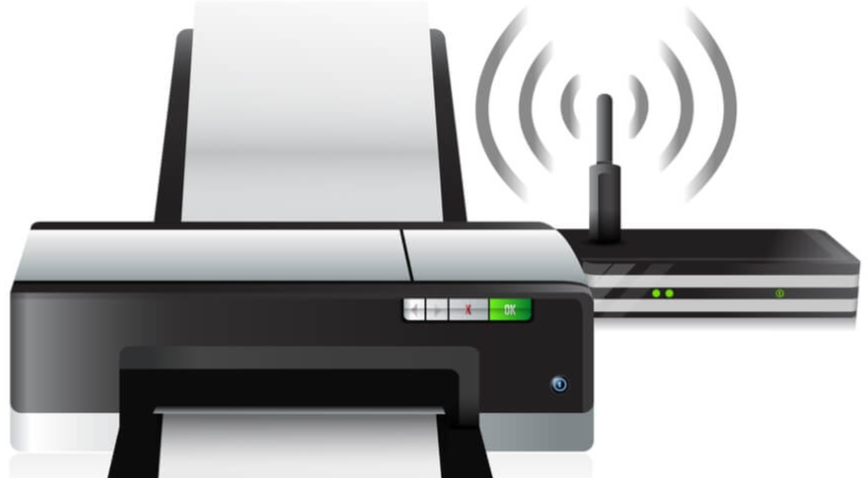
Whether you’re setting up a printer for your home or office, the process can feel tricky. From drivers to Wi-Fi connections, printer installation requires the right steps to avoid frustration. Beyond setup, it’s just as important to maintain your printer to prevent costly repairs or wasted ink.
1. Wired Printer Installation
- Connect your printer to the computer with a USB cable.
- Turn on the printer and wait for your computer to recognize it.
- If drivers don’t install automatically, download them from the manufacturer’s website.
2. Wi-Fi Printer Installation
- Power on the printer and navigate to the Wi-Fi setup menu.
- Choose your wireless network and enter the password.
- On your computer, go to Settings → Devices → Printers & Scanners (Windows) or System Preferences → Printers & Scanners (Mac).
- Add the new printer from the detected list.
Printer Maintenance and Ink Care
Once installation is complete, proper care keeps your printer running smoothly.
- Print regularly : If a printer isn’t used for more than 2–3 weeks, ink can dry out in the nozzles.
- Run cleaning cycles : Use your printer’s built-in cleaning function to prevent clogs.
- Keep it dust-free : Dust inside the paper tray and rollers can cause jams.
- Store ink cartridges properly : Keep extras sealed and in a cool, dry place.
Should You Repair or Replace a Printer?
Sometimes, printer issues are more expensive to fix than replace. Here’s a quick guide:
- Repair if: It’s a higher-end laser printer or business model with affordable replacement parts.
- Replace if: It’s a low-cost inkjet printer and repair costs approach or exceed the cost of a new model.
At Houston Tech Guys, we can inspect your printer and advise whether repair or replacement is the best option.
Safe maintenance boundaries
Back up before major changes. Power off and unplug equipment before exterior cleaning; follow the manufacturer’s instructions and do not spray liquid into openings. Avoid opening power supplies or devices with swollen batteries. Use the operating system’s supported storage optimization rather than manual SSD defragmentation or registry-cleaning utilities. Maintenance frequency depends on dust, workload and symptoms, not a universal schedule.