Keeping your computer in top shape is crucial for ensuring it runs efficiently and lasts longer. Regular maintenance helps prevent slowdowns, crashes, and unexpected failures. Whether you use your computer for work, gaming, or everyday tasks, following simple upkeep routines can save you time and money. This guide provides practical tips to help you maintain your computer’s health and performance.
Understanding the Importance of Computer Maintenance
Proper computer maintenance is more than just cleaning your device physically. It involves a combination of software and hardware care to keep everything running smoothly. Neglecting maintenance can lead to issues such as:
- Slow startup and shutdown times
- Frequent crashes or freezes
- Overheating and hardware damage
- Security vulnerabilities
By regularly performing maintenance tasks, you can avoid these problems and extend the life of your computer. For example, cleaning out dust from your computer’s fans can prevent overheating, while updating your software helps you have the latest security patches.
Key Computer Maintenance Practices to Follow
To keep your computer running smoothly, focus on these essential maintenance practices:
1. Keep Your Software Updated
Software updates are critical for security and performance. Operating systems, drivers, and applications often release updates to fix bugs and patch vulnerabilities. Set your system to update automatically or check regularly for updates.
- Operating System: Windows, macOS, or Linux updates improve stability and security.
- Drivers: Graphics, sound, and network drivers should be current to avoid hardware conflicts.
- Applications: Update browsers, antivirus, and productivity tools to the latest versions.
2. Perform Regular Disk Cleanup
Over time, your hard drive accumulates temporary files, cache, and other junk that slow down your system. Use built-in tools like Disk Cleanup on Windows or third-party apps to remove unnecessary files.
- Delete temporary internet files and system cache.
- Uninstall unused programs.
- Clear out old downloads and documents you no longer need.
3. Defragment Your Hard Drive (If Using HDD)
Note that this is not necessary for solid-state drives (SSD).
4. Manage Startup Programs
Too many programs launching at startup can slow down boot times. Review and disable unnecessary startup items.
- On Windows, use Task Manager to manage startup programs.
- On macOS, check Login Items in System Preferences.
5. Scan for Malware and Viruses
Malware can severely impact your computer’s performance and security. Use reputable antivirus software to scan regularly.
- Schedule automatic scans weekly.
- Keep your antivirus software updated.
- Avoid downloading files from untrusted sources.
Physical Maintenance Tips for Your Computer
Physical care is just as important as software upkeep. Dust, heat, and physical damage can cause hardware failures. Here are some tips to maintain your computer’s physical condition:
1. Clean Your Computer Regularly
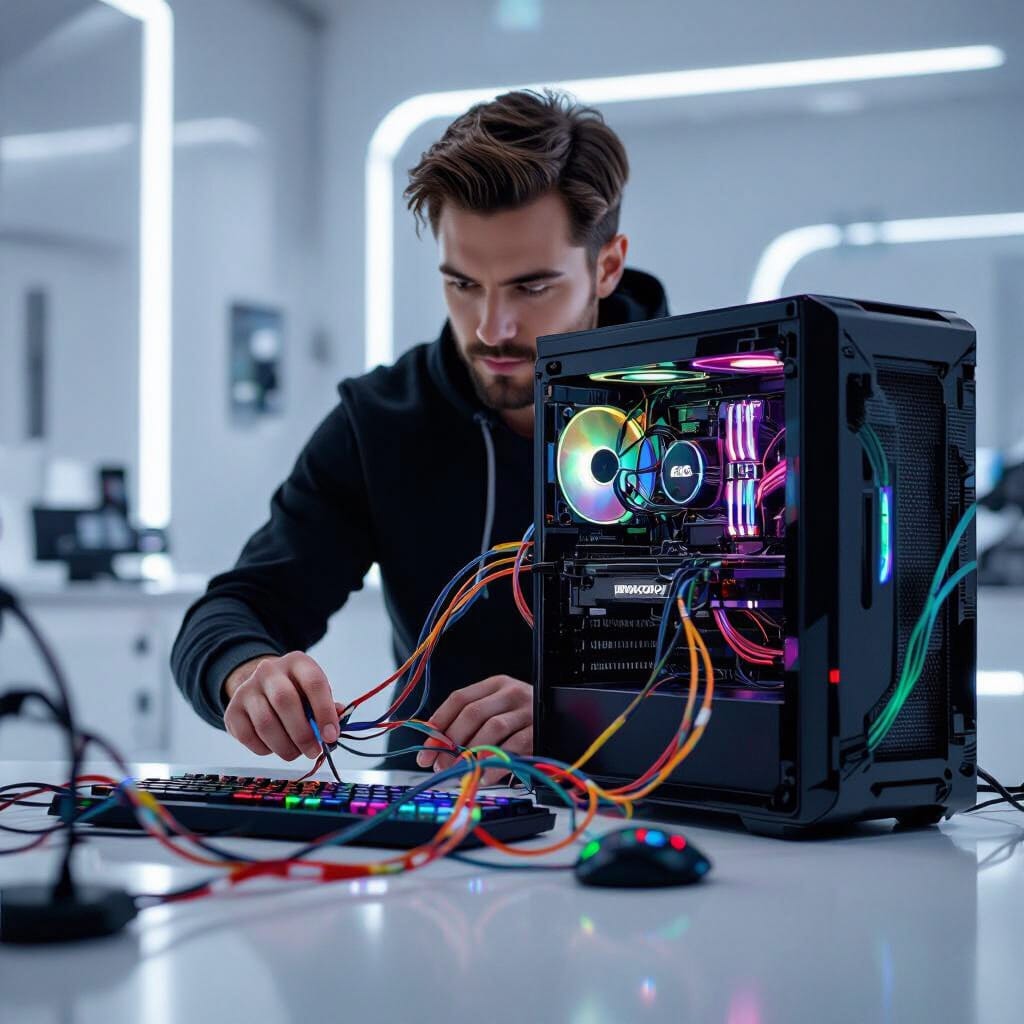
Dust buildup inside your computer can block airflow and cause overheating. Use compressed air to blow dust out of vents, fans, and keyboards.
- Power off and unplug your computer before cleaning.
- Use a soft cloth to wipe the exterior.
- Avoid using liquids directly on the device.
2. Ensure Proper Ventilation
Place your computer in a well-ventilated area to prevent overheating. Avoid blocking air vents with objects or placing the device on soft surfaces like beds or couches.
3. Check and Replace Thermal Paste
For desktop users or those comfortable opening their laptops, replacing thermal paste on the CPU can improve heat dissipation. This task is recommended every few years or if overheating occurs.
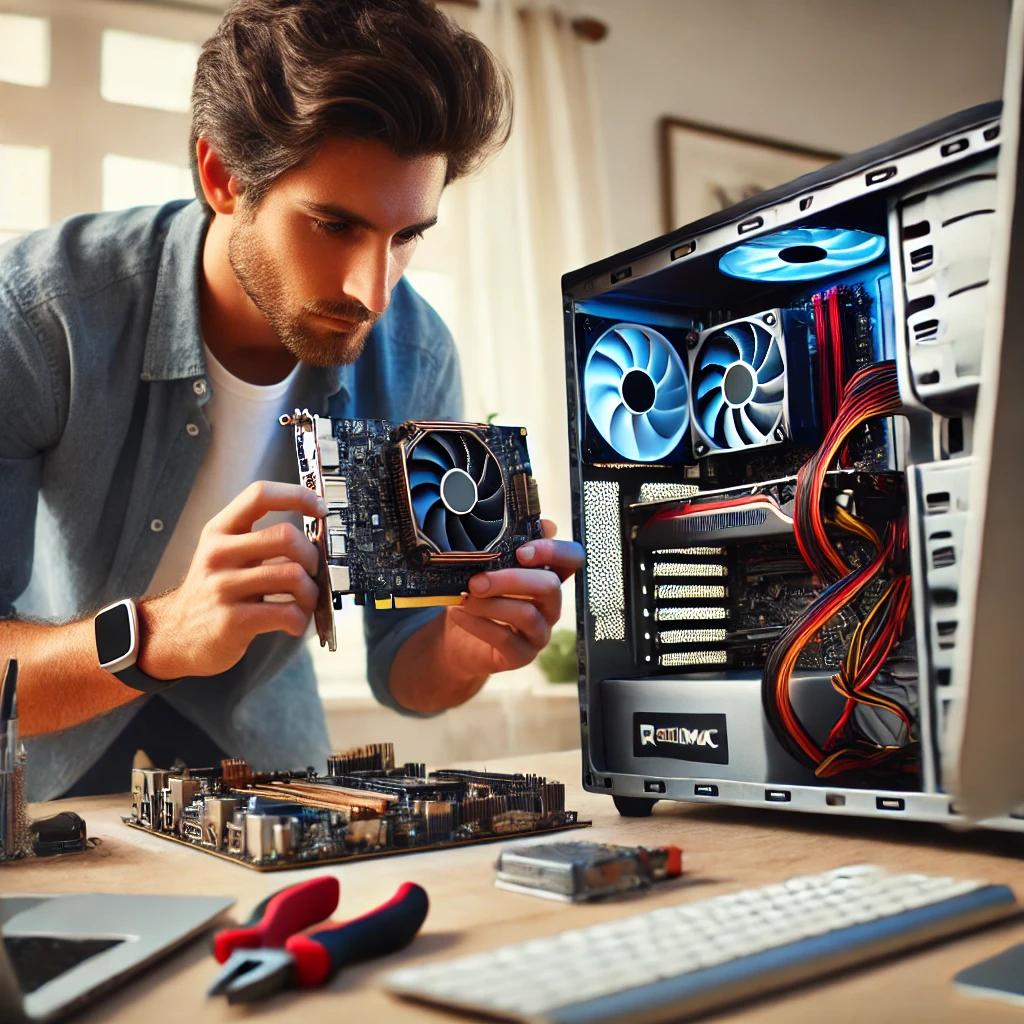
4. Inspect Hardware Components
Periodically check cables, connectors, and hardware components for signs of wear or damage. Replace faulty parts promptly to avoid further issues.
When to Seek Professional Help
While many maintenance tasks can be done at home, some issues require expert attention. If you experience persistent problems like frequent crashes, hardware failures, or complex software errors, consider contacting professional computer services .
Professionals can:
- Diagnose and repair hardware issues
- Perform advanced virus removal
- Upgrade components safely
- Provide data recovery services
Regular maintenance combined with professional support helps your computer remains reliable and efficient.
Tips for Maintaining Laptops vs. Desktops
Laptops and desktops have different maintenance needs due to their design and usage patterns.
Laptop Maintenance Tips
- Avoid using laptops on soft surfaces to prevent overheating.
- Use a cooling pad if you run intensive applications.
- Be gentle with ports and hinges to avoid physical damage.
- Regularly back up data to external drives or cloud storage.
Desktop Maintenance Tips
- Keep the case closed to reduce dust entry.
- Use cable management to improve airflow.
- Upgrade components like RAM or storage as needed.
- helps the power supply is stable and protected with a surge protector.
By tailoring maintenance to your device type, you can maximize performance and longevity.
Safe maintenance boundaries
Back up before major changes. Power off and unplug equipment before exterior cleaning; follow the manufacturer’s instructions and do not spray liquid into openings. Avoid opening power supplies or devices with swollen batteries. Use the operating system’s supported storage optimization rather than manual SSD defragmentation or registry-cleaning utilities. Maintenance frequency depends on dust, workload and symptoms, not a universal schedule.